
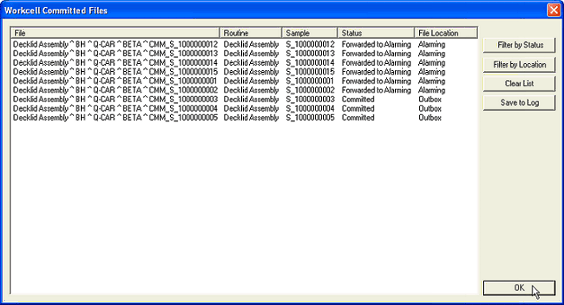
The Workcell Committed Files dialog contains a list of all of the files that have been loaded into Workcell, whether they have been committed, forwarded, or rejected. The files in the Committed Files dialog can only be viewed, filtered, cleared, or saved to a log file.
Filter by Status
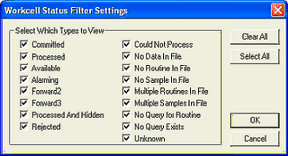
In the Status Filter Settings dialog, the first column contains a list of actions that can be taken with a file, while the second column lists the possible error conditions Workcell may report.
Filter by Location
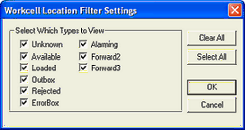
The Location Filter Settings dialog contains a list of the possible locations of committed files.
Clear List
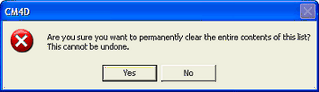
You may find that after many files have been processed through Workcell and committed, the list of files in the Committed Files dialog can get to be extensive. Clearing the list of files periodically will help to keep the dialog manageable.
Save to Log
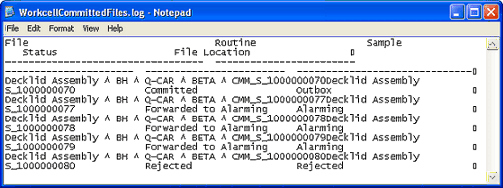
The Save to Log option will save all the file information as it appears in the Committed Files dialog as a text file. This log function allows you to clear the list of committed files periodically while retaining a record of the files that have been processed through Workcell.
Can we improve this topic? Click Send Feedback in the upper right of the screen to share your comments!